Everyone has their productivity hacks. I’m a big fan of Oliver Burkeman’s done list approach.
This is why I’m such an enthusiastic proponent of keeping a “done list”, which starts empty, first thing in the morning, and which you then gradually fill with whatever you accomplish through the day. Each entry is a cheering reminder that you could, after all, have spent the day doing nothing constructive – yet look what you did instead! (If you’re in a serious psychological rut, just lower the bar for what gets to count as an accomplishment: nobody else need ever know that you added “brushed teeth” or “made coffee” to the list.)
It’s probably fairer to say that this is a way of dealing with the perpetual overwhelm of modern life than a productivity hack. You say tomato.
It honestly didn’t occur to me that there was any way of doing this besides literally writing down every completed task on a notepad. This worked, but it created the bad kind of friction (where I stress about missing “done” tasks, the terrible state of my handwriting, and having to carry a notepad around with me) rather than the good kind (where I take a moment to give gratitude to the universe for how well I’m getting through my admin).
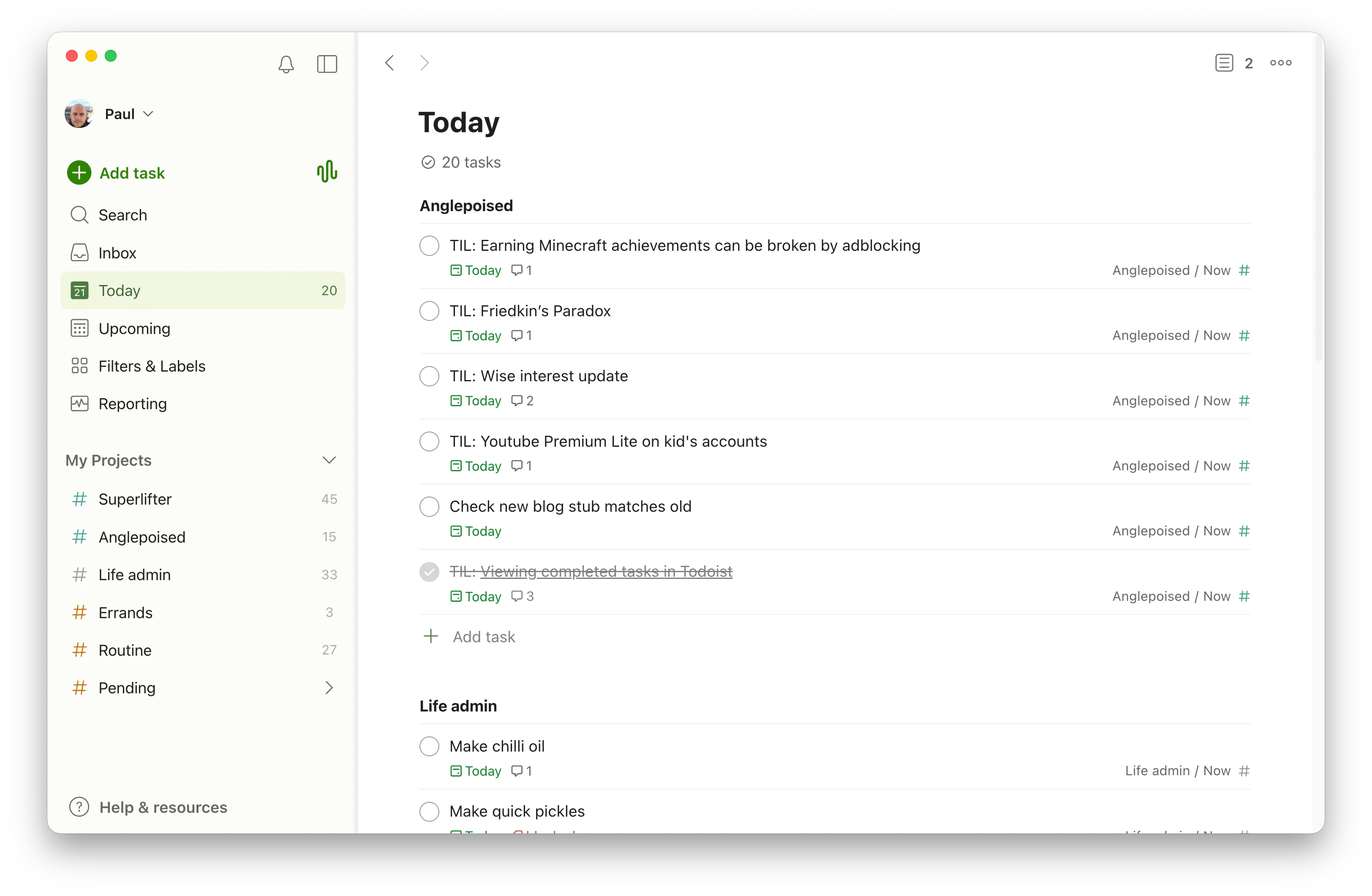
Today I found out that Todoist (my todo app of choice for the last decade or so) has added experimental support for viewing completed tasks in the Today view. This basically enables Oliver Burkeman mode, stopping tasks from vanishing into the done void when completed.
It’s easy to set up:
- Switch on Todoist’s Experimental features
- Go to Today view
- Turn on Completed tasks
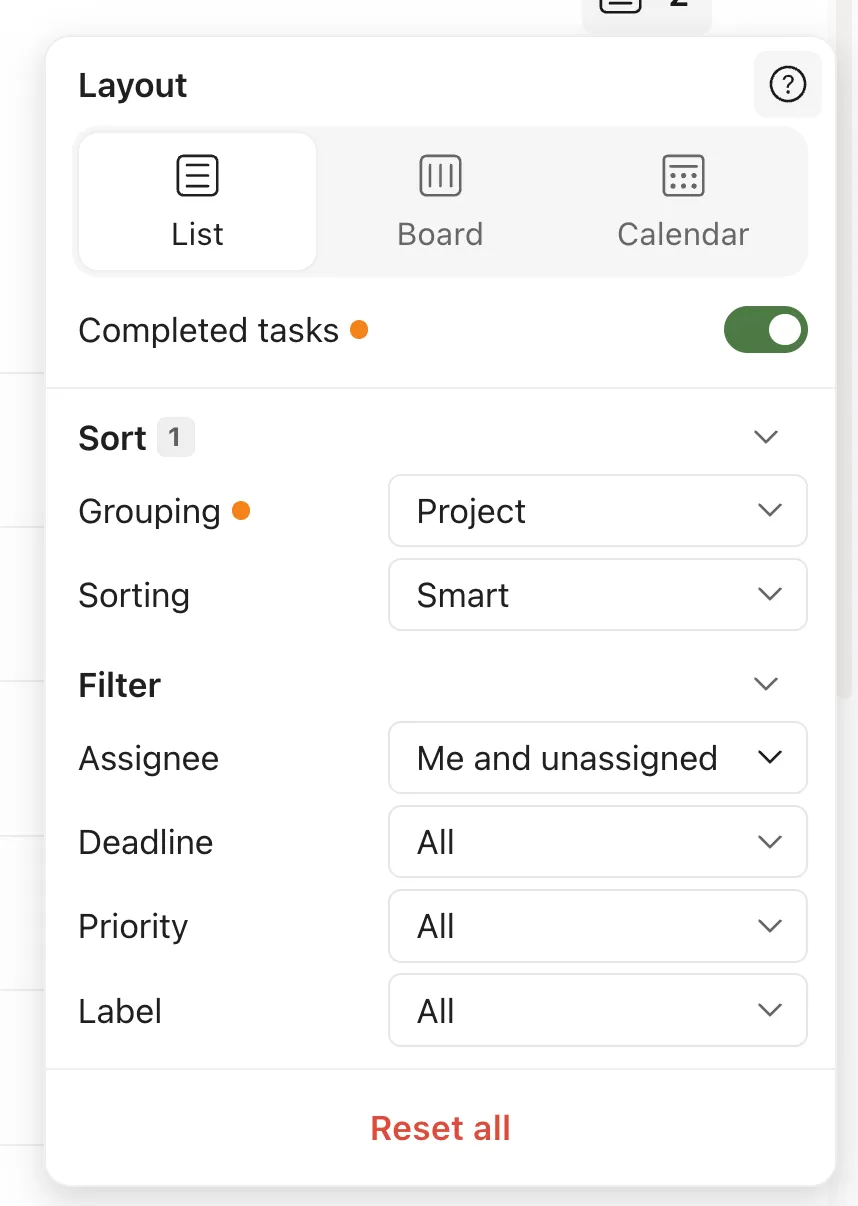
Now completed tasks will hang around until (unsurprisingly) the end of the day.
Notes
- This setting syncs across (almost) all clients. For me this is Mac, iPad and iPhone but not Apple Watch.
- I set this up on my Mac, but had to force close and restart the iOS apps to get experimental settings working.
- Recurring tasks that are completed disappear. I don’t mind this myself, as I tend to use repeating tasks for tiny nudges.
- Only completed tasks that have a due date of Today will appear as completed in the Today view, which does make sense but means that completed but undated tasks won’t appear. This is actually helpful: if you have a task you don’t want to appear, don’t date it. If you want a completed task to appear, date it before you hit complete (or if you’re like me: complete it, realise you forgot to add the date, then uncomplete it, add the date and complete it again).